 waputu
Before you start
- Identify the correct facility, saved job and original release.
- Determine whether you need the original label or a newly reviewed version.
Where to click
- 1Labels > Saved jobs→
- 2Download / reprint PDF→
- 3Review the PDF→
- 4Print→
- 5Changed facts
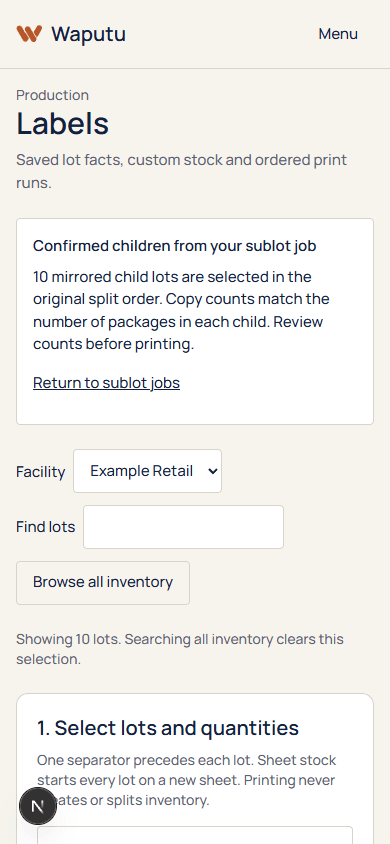
Step-by-step instructions
1Labels > Saved jobs
Find the job by its date, lot count and label count. Confirm the identifiers.
2Download / reprint PDF
Download the original saved snapshot. Each request is recorded as a print event.
3Review the PDF
Check the lot order and original facts. Changes to a current lot profile do not silently change this historical file.
4Print
Use the same actual-size and stock checks as the original run.
5Changed facts
If product facts or layout genuinely need revision, create a new reviewed job. Preserve the old job as historical evidence.
The reprint reproduces the recorded snapshot and does not create sublots or contact the split endpoint.
If something goes wrong
The old label has an error
Do not treat a reprint as a correction. Review the facts and create a new version through the normal release process.
The old job is unavailable
Check facility scope and contact support with the job identifier. Do not share another organization PDF.
Still need help?
Send the workspace, facility, safe error and approximate time. Keep credentials and private activation links out of the message.
Contact supportSearch another guide