 waputu
Before you start
- Confirm the facility, parent and destination room.
- The parent must remain positive after allocation. Do not assume its unit from a mirror quantity.
Where to click
- 1Sublots→
- 2Review the allocation→
- 3Read current parent and review→
- 4Review confirmation→
- 5Create sublots→
- 6Recent jobs
Step-by-step instructions
1Sublots
Choose the facility and select the parent lot. Missing or blocked records cannot be used.
2Review the allocation
Enter the child count, quantity per child and allowed destination room. Counts must be whole numbers where the unit requires them.
3Read current parent and review
Read the returned unit, available quantity, total allocated and remainder. For 10 children of 50 packages, a 600-package parent leaves 100.
4Review confirmation
Check the facility, parent, room and amounts again. Select the confirmation that explicitly authorizes creating these sublots in NMS2S.
5Create sublots
Submit once. Waputu records each child intent before its single state request, then records the confirmed identifier.
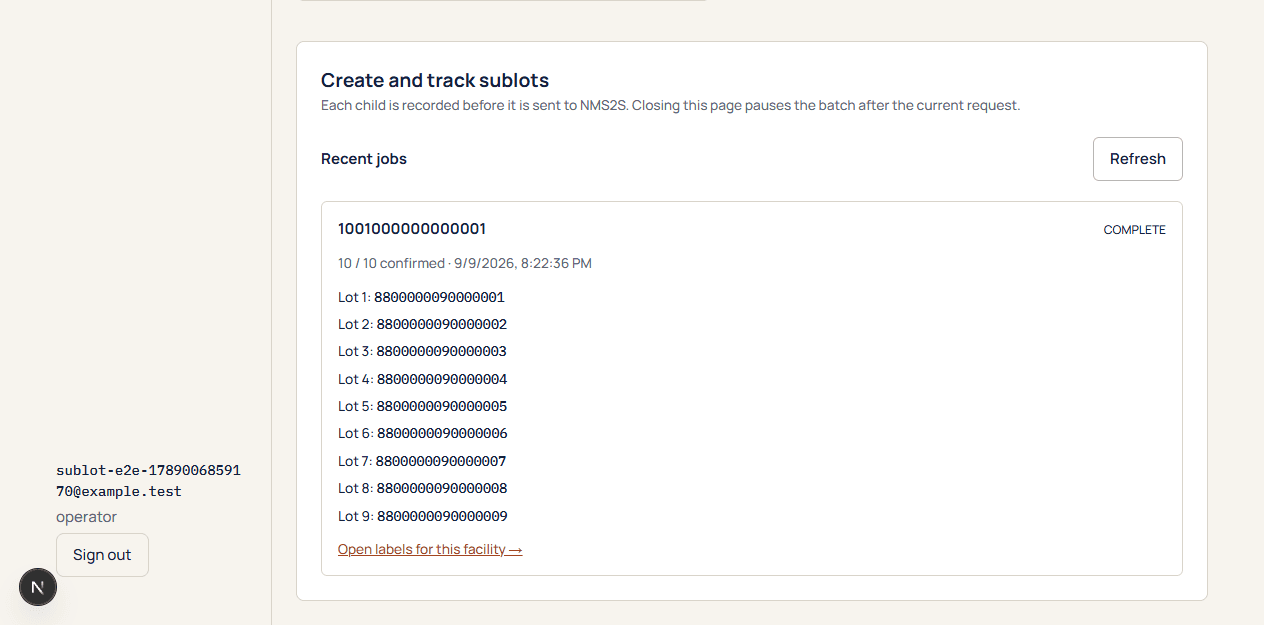
6Recent jobs
Watch confirmed children and any stopped or uncertain result. Use the saved job to continue; do not start a new one to bypass an error.
The job lists state-confirmed child identifiers, their inventory records are refreshed, and the parent remainder agrees with the plan.
If something goes wrong
Amount or unit rejected
Use the live parent unit and permitted precision. Do not change the meaning of a package into grams.
A job already owns this parent
Open that job and resolve it. The parent lock prevents overlapping submissions.
Submission stops
Follow paused-job or uncertain-outcome guidance before taking another state action.
Still need help?
Send the workspace, facility, safe error and approximate time. Keep credentials and private activation links out of the message.
Contact supportSearch another guide